
I’ll outline how to remove multiple people from your photos using the three different photo editing apps in this blog post. I use these three apps myself. Which one I use depends on the surroundings of the people I want to remove. At the end, you’ll find a few tips on what to check after the tools did their job.
Table of Contents
Why I Remove People from Photos
I’ve been removing people from some photos ever since. Especially from my travel photos I took in touristic locations if I wanted to show the beauty of the subject. More than once, tourists just don’t care if you’d want to take a photo and run into your frame.
Thanks to AI, removing people from photos is easy. It just takes a few taps.
iPhone Apps to Remove People from Photos
In the following chapters, we are going to look at three apps to remove people from your photos on iPhone I use myself. These are the same apps I’ve listed in my overview of the best and recommended iOS photo editing apps.
I know that there are many other apps out there that offer the same or similar features. But my content policy is only to write about the apps I use myself. So let’s start and remove a few people with Apple Intelligence in Apple Photos.
iOS Photos App using Apple Intelligence Clean Up Tool
With iOS 18.3 (and 18.4 in the European Union) Apple introduced Apple Intelligence. One of the Apple Intelligence features is the cleanup tool in the iOS Photos App. With iOS 27, Apple released a revamped and in my opinion improved version of this tool.
To demonstrate how to remove people from a photo using this Apple Intelligence Cleanup, I’ll use a photo of Skogafoss waterfall in Iceland. You can use the tutorial stepper below to see how to use it step by step
- Step 1 of 6
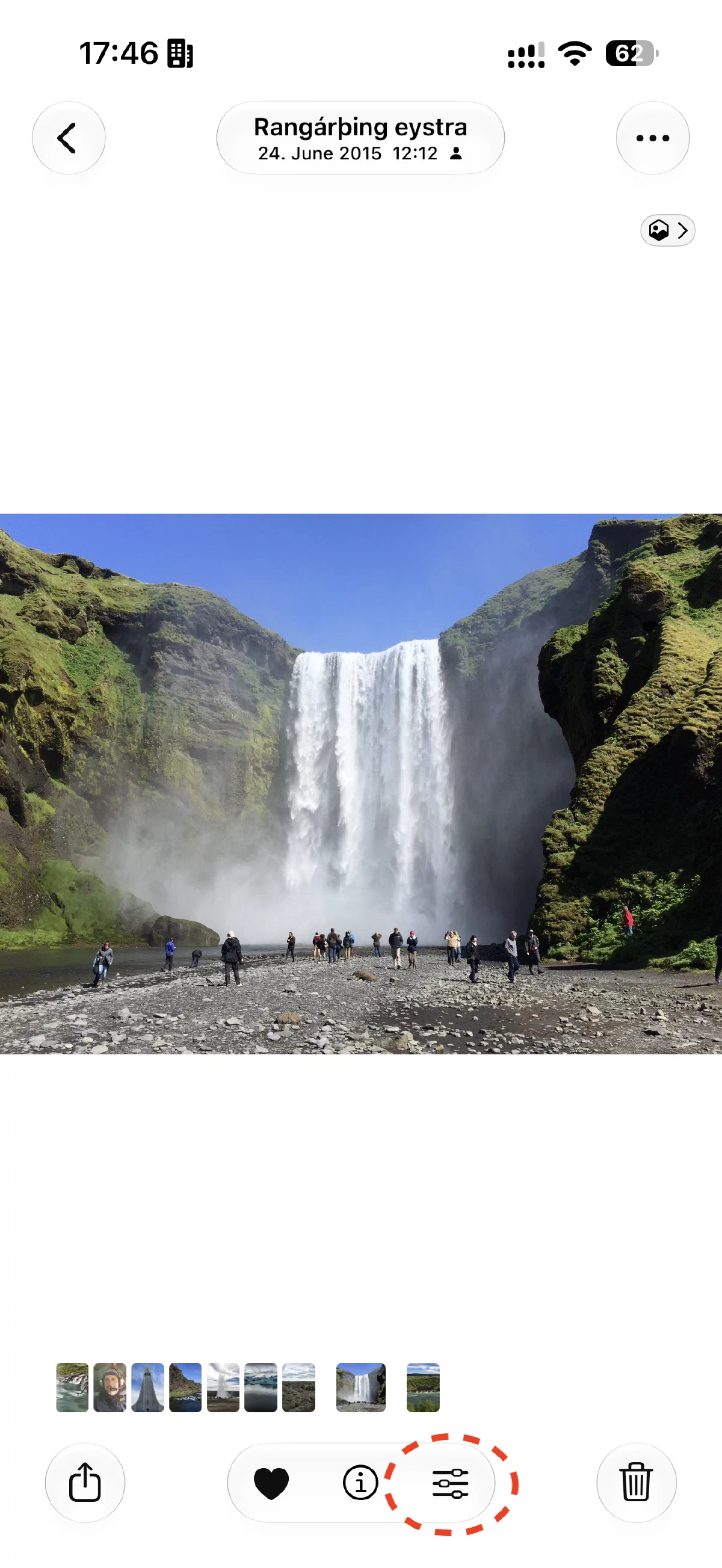
Open Photo & Enter Edit Mode
Select the photo with unwanted people in your Photos library. Tap the edit icon (sliders) in the bottom toolbar to open the editing workspace.
- Step 2 of 6
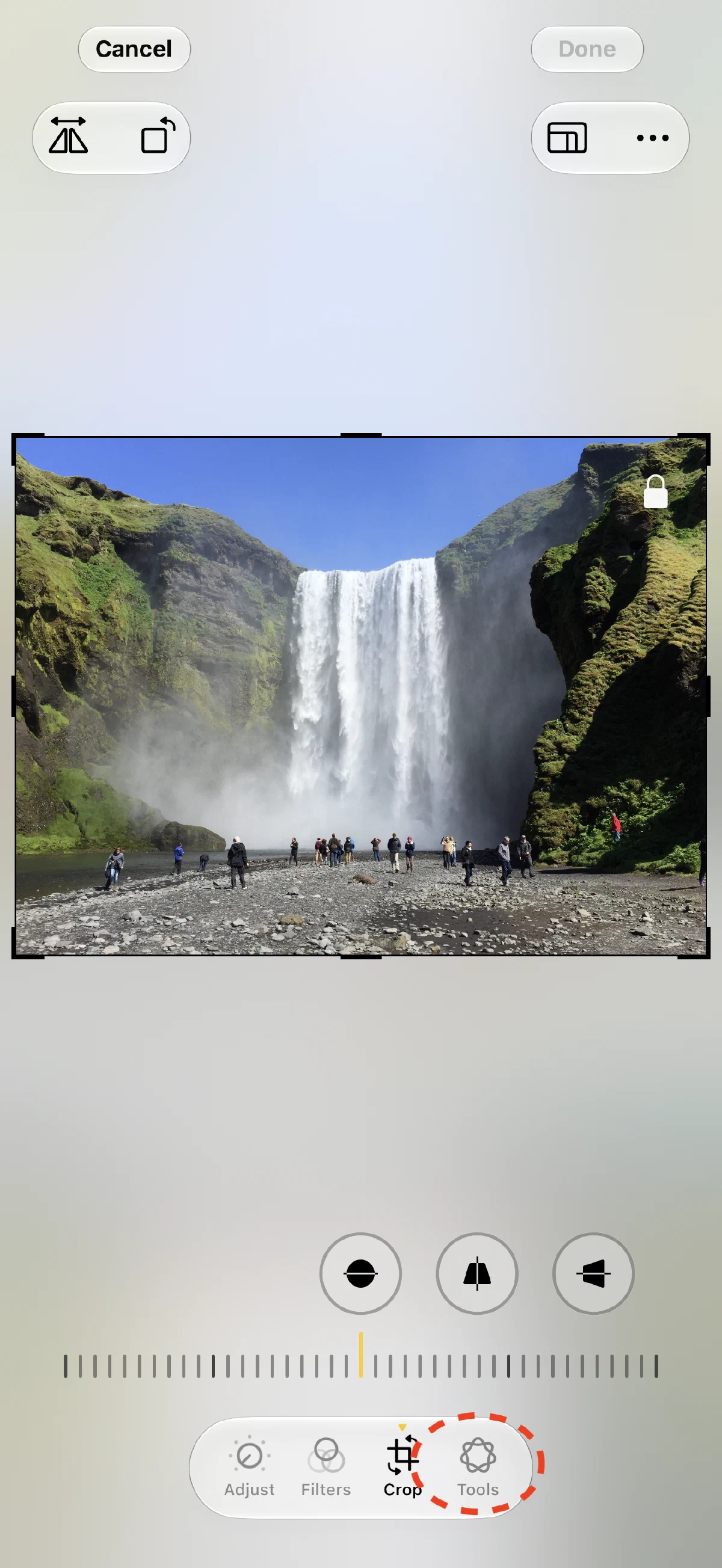
Select Apple Intelligence Tools
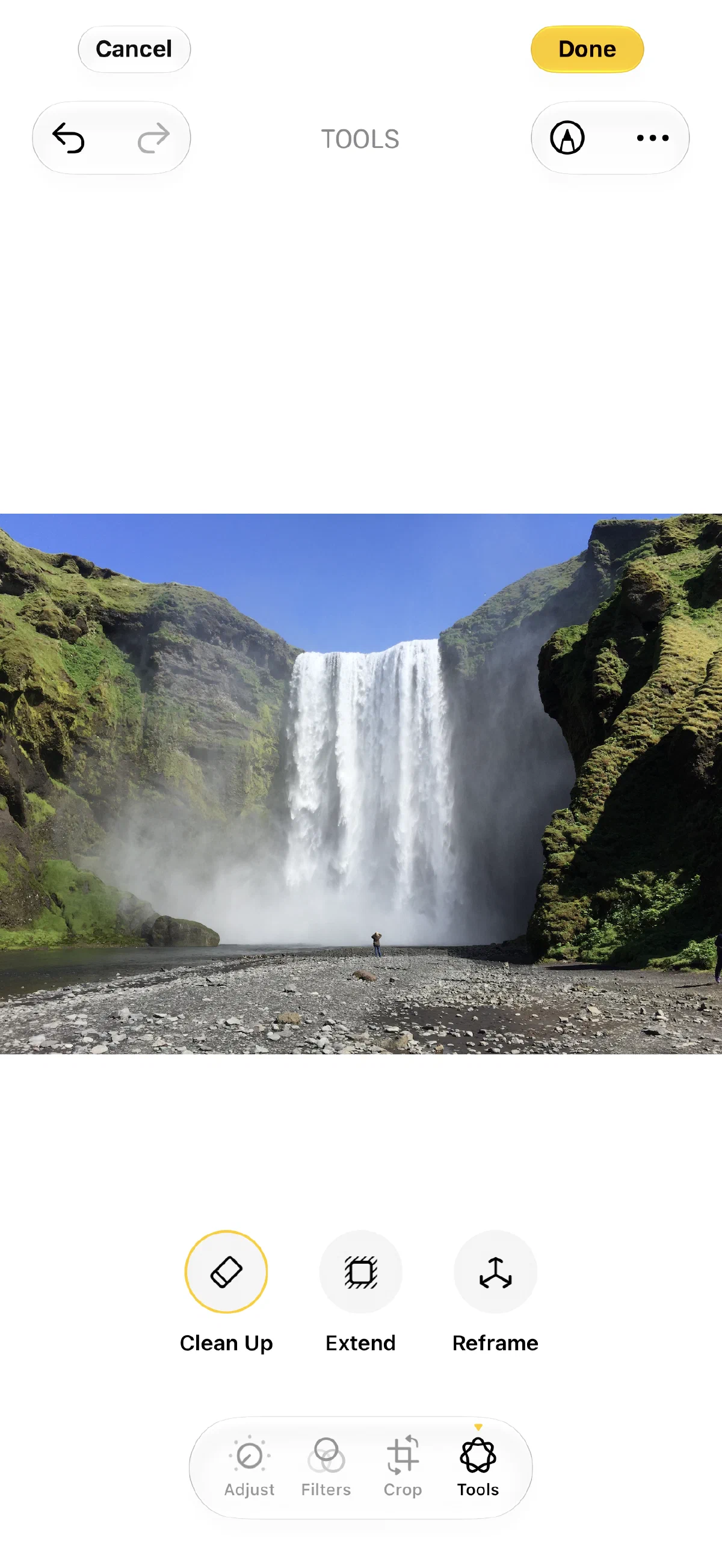
In the bottom editing bar, tap the Tools icon (with the Apple Intelligence symbol) to access the AI-powered editing features.
- Step 3 of 6
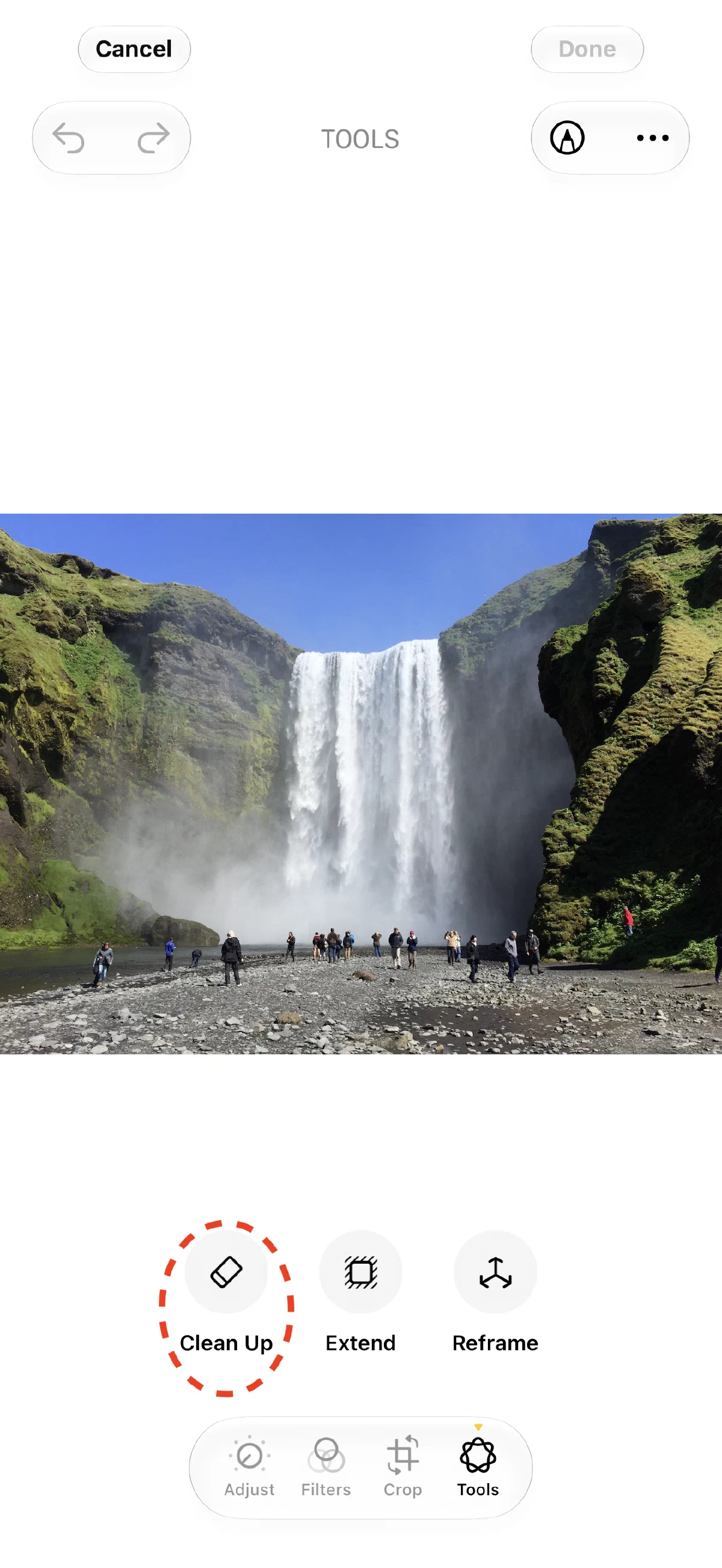
Choose the Clean Up Tool
Select the Clean Up tool from the Apple Intelligence menu (left of Extend and Reframe).
- Step 4 of 6
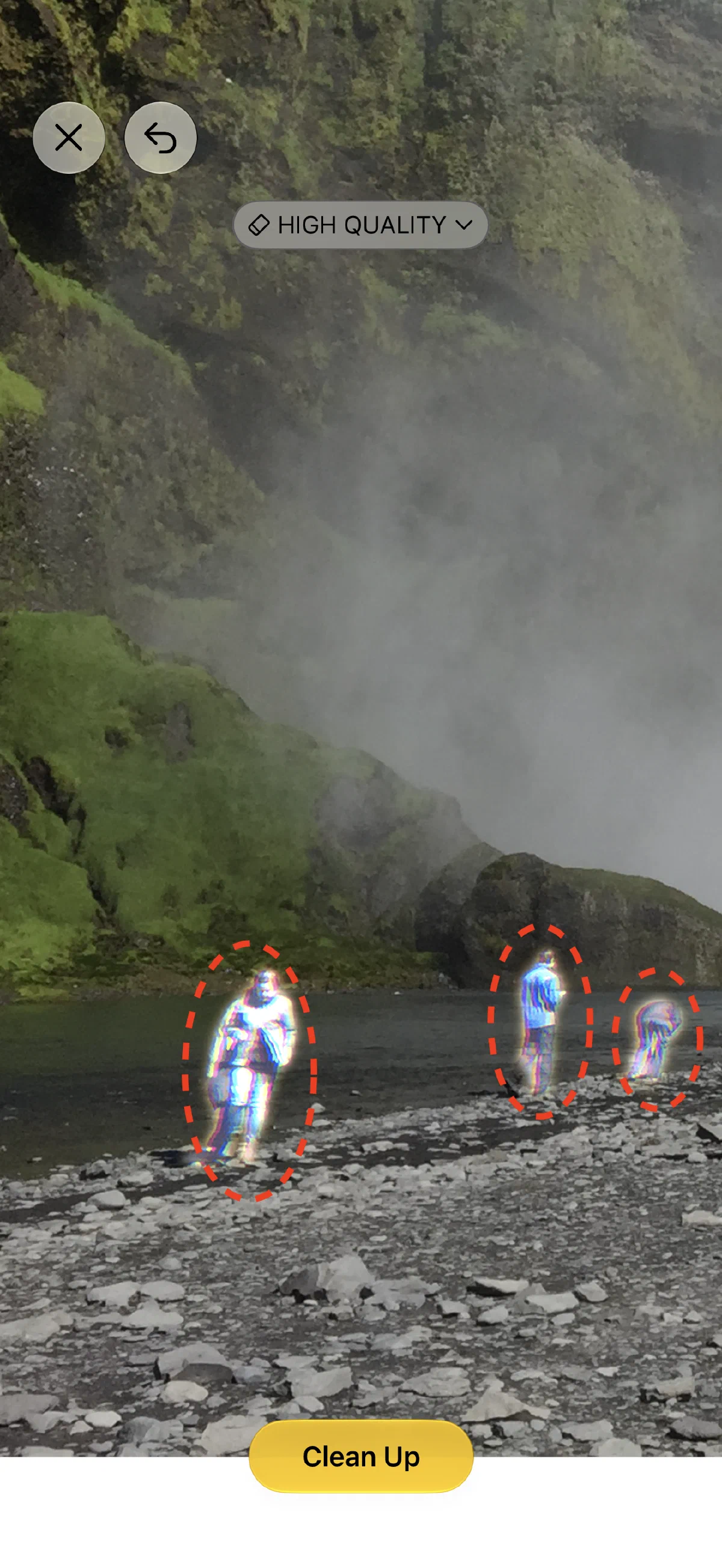
Inspect Highlighted People
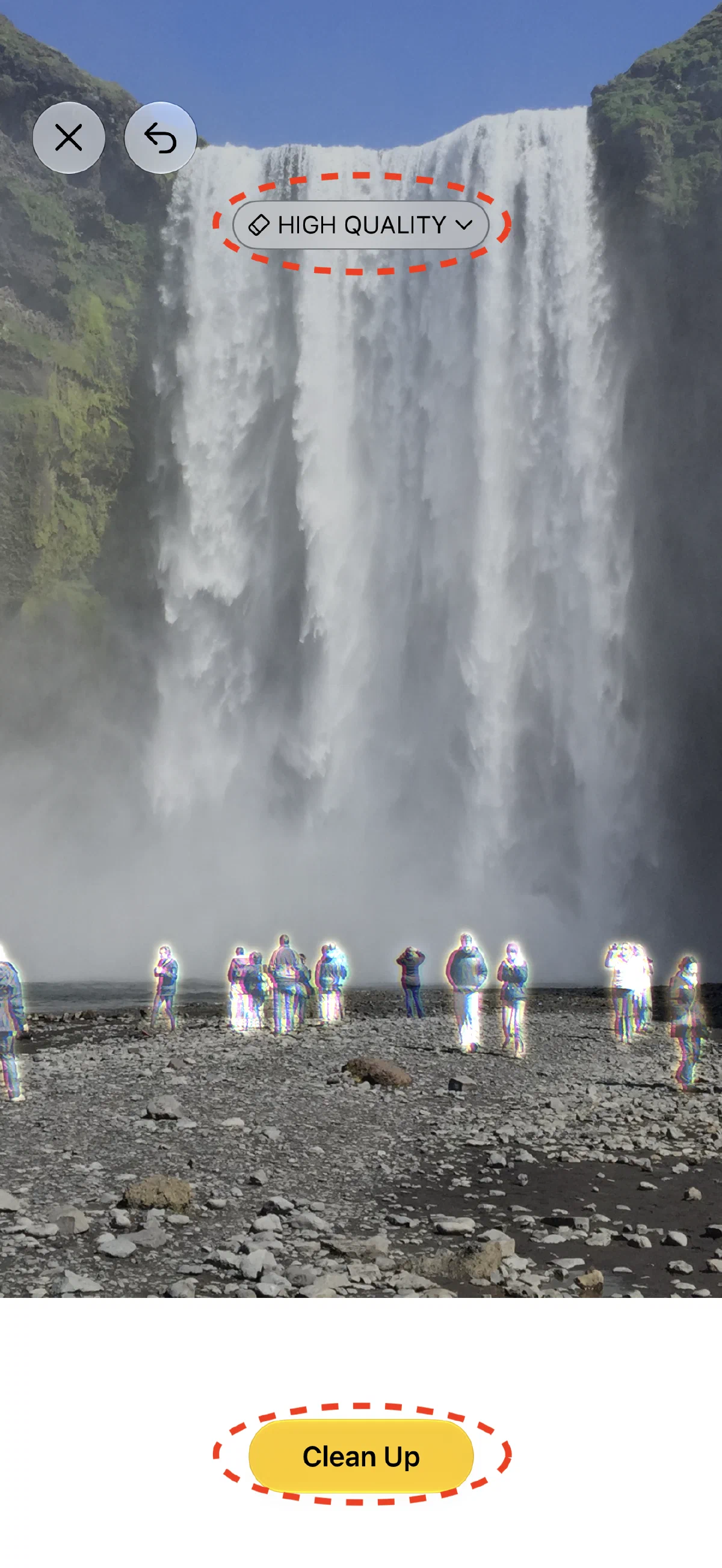
Apple Intelligence scans the scene and highlights detected people with a glowing outline. Now tap or circle each person you want to remove. This will select the person for removal. Use two fingers to move the photo if zoomed in
- Step 5 of 6
Erase the Crowd.
Now make sure that High Quality mode is active for best results and then tap the 'Clean Up' button to erase the crowd.
- Step 6 of 6
Review the Result & Save
The crowd is seamlessly erased from the waterfall. Review the final composition and tap 'Done' in the top right corner to save your photo.
With iOS 27, I see myself using the tool more often to remove people and objects from photos. However, I’ll still turn to Touch Retouch App for more advanced photo retouching. To learn more about the other Apple Intelligence photo editing features, check out my blog post about the Apple Intelligence photo editing features new in iOS 27.
Remove People from Photos using Touch Retouch App
Touch Retouch App is one of the best photo editing Apps on iPhone that I’ve been using for years. It was one of the first photo editing apps on iOS to launch an AI-based removal tool. I believe it was at least one year before Apple even announced Apple Intelligence.
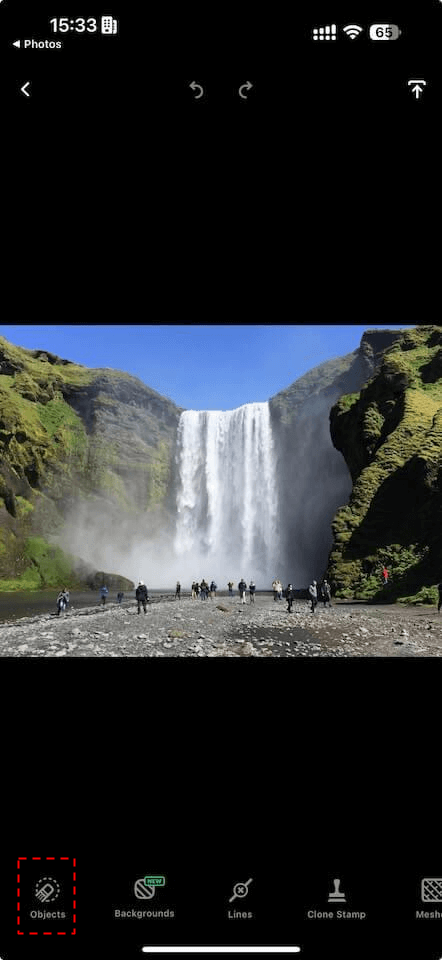
To remove people from a photo using the Touch Retouch App, open the photo in the App. Then tap “Objects”. A new menu will appear. Tap “Erase AI”.
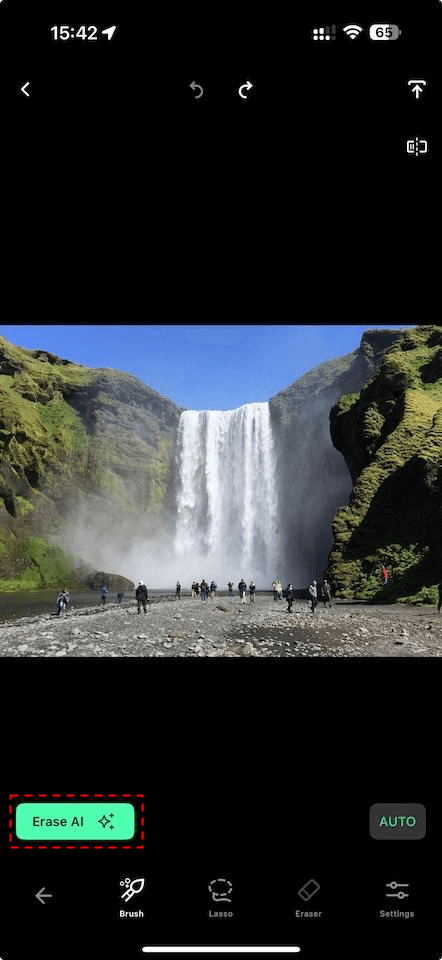
Now, Touch Retouch will try to find the people in the photo and highlight them using a green selection. You can see that in the above screenshot.
If you want to keep a person (like yourself) in the photo, use the eraser tool to remove the selection from a person.
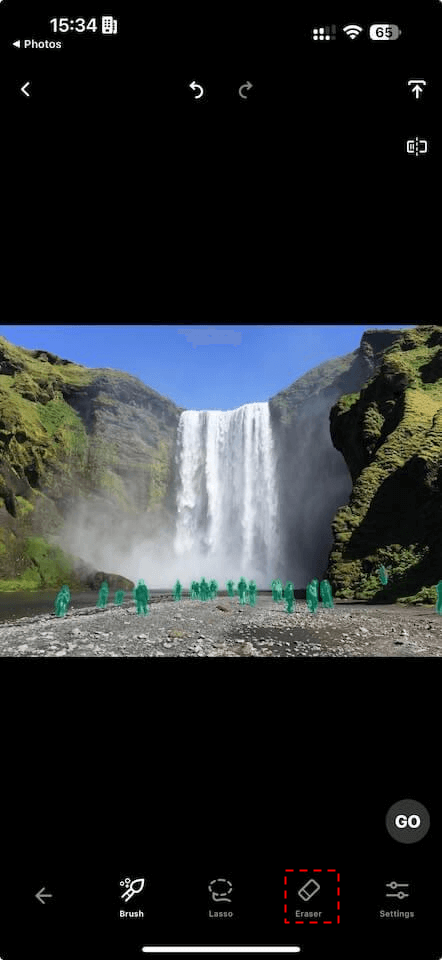
If you’re satisfied with the selection, tap “Go” and the selected people will be removed.
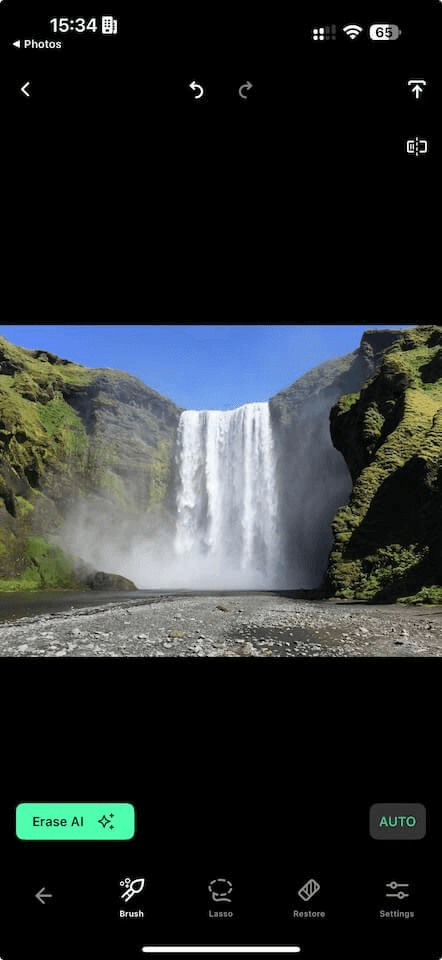
Despite the good results I get from Apple Intelligence, I’ll keep the Touch Retouch App. It offers various tools to remove objects from photos that Apple intelligence can’t like meshes or power lines. It also has a clone stamp that I can use to fix artifacts created while removing people.
To read more, please head over to my Touch Retouch App Review I’ve published previously and regularly update.
Remove People from Photos using Adobe Lightroom Mobile
In this chapter, we’ll look at Adobe Lightroom’s removal tool with generative AI. This is a premium feature, and you can only use it, if you have a paid lightroom mobile subscription. In my Lightroom Mobile review I’ll outline what else is included in a Lightroom Mobile subscription and try to answer the question if it’s worth it (Hint: As I write about Lightroom Mobile in this blog post, the answer for my travel photography is “yes”).
To remove people with Lightroom Mobile, tap any photo to view it large and then tap the* “removal”* tool in the lower toolbar.
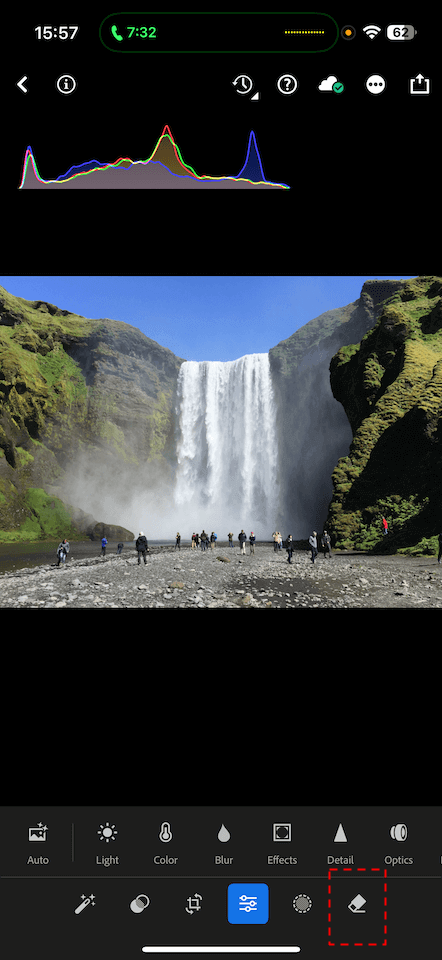
Next, make sure the “Generative AI” option is enabled and adjust the brush size to your needs. Now zoom in and paint over the person you want to remove. You don’t have to paint exactly over it. In fact, it’s even better to also include some space around the person.
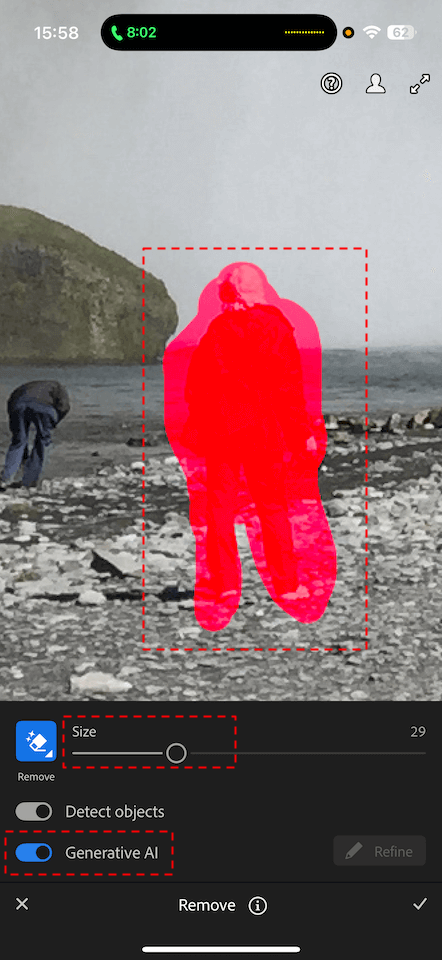
As soon as you lift your finger, Lightroom’s generative AI starts to do its work and to replace the person with a generative AI pattern. As you can see from the next screenshot, it did a great Job removing this person. If you’re not satisfied, you can toggle through three patterns by tapping the buttons.
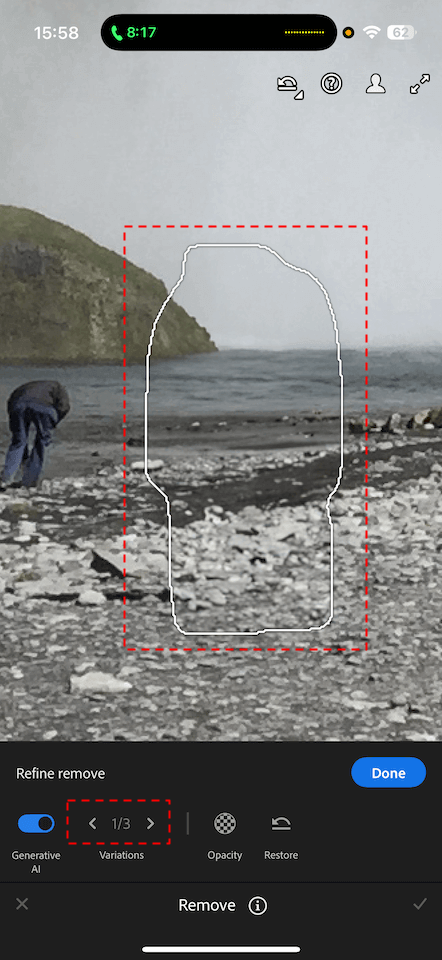
Can you spot the part of the image that generative AI added and that was not there in the original image? Sound off in the comments if you have.
Once you’re satisfied, tap done.
Compared to the first two Apps this is the most work-intensive way. If I’d need to remove 20 people, it will take me a few minutes. Moreover, it will cost one generative AI credit per person (unless you manage to select multiple people at the same time).
On the other hand, this is the best way to remove people from a photo quality-wise. You can toggle through three different patterns that Lightroom’s generative AI created.
I use Lightroom Mobile if I have a bunch of people or even objects to remove that I can’t remove using one of the other two tools or to fix artifacts the other two tools created.
Tipps for removing People using iPhone
Independently of the tool you decide to use, here are a few issues I encountered when removing stuff from my photos and how to fix it.
Check for remaining shadows
If you do not zoom in, you might miss the remaining shadows of the people you removed. Neither AI is perfect at detecting them at the time I wrote this blog post. Here’s an example screenshot of Touch Retouch.
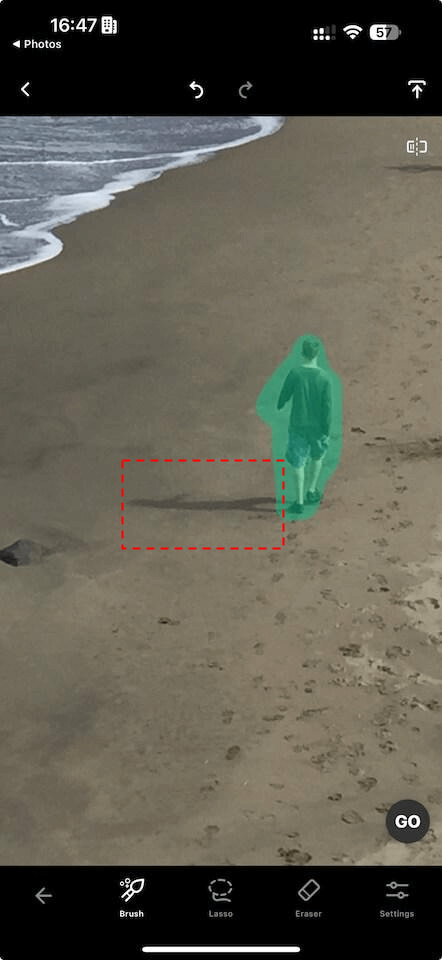
How to fix this problem depends on the tool you’re using:
- In the Apple Intelligence Clean Up Tool circle, the person including its shadow.
- In Touch Retouch use the brush tool to select the shadow, too
- In Adobe Lightroom Mobile, don’t forget to include the shadow by painting over it in the first place.
Check if AI only detected people or some other objects, too
Occasionally, the AI features do not only select only people, but also other objects you may want to keep. So make sure to check, if only people (and their shadows) are selected.
If you find objects selected that you don’t want to remove:
- Don’t tap them in the Apple Intelligence Clean Up tool
- Use the eraser brush in Touch Retouch to remove the selection
- In Lightroom Mobile AI does not (yet) detect objects. So if you accidentally paint over an object, start over.
Check for Artifacts
I tried the Apple Intelligence Clean Up Tool to remove a bunch of people at the beginning of the Dark Hedges in Ireland. That didn’t work well, as you can see. Apple Intelligence placed a few bushes in the middle of the path, which I don’t want.
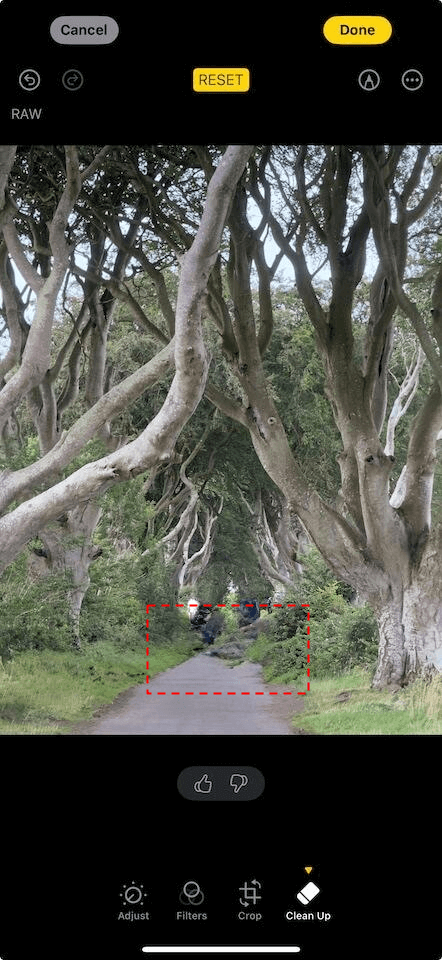
If you see such artifacts, you can try to:
- Include more (or sometimes less) space around the objects when selecting them. That works like 2 out of 5 times.
- Try if AI can remove the added artifact by selecting it. That works like 1 out of 5 times
- Use a different tool to remove the people in the first place, like Adobe Lightroom Mobile, which handles such situations perfectly. That works 4.5 out of 4 times.
Summary
With generative AI, it’s as easy as never before to remove people or other objects from your photo on an iPhone. With the Apple Intelligence Clean Up Tool you get a free tool to remove people from a photo that works good for many photos.
With Touch Retouch App, you can buy a tool that does way more than removing people from your photos. You get a tool to retouch photos and remove objects like fences, wires and other objects in many ways. You can get Touch Retouch App from the App Store or read my in-depth Touch Retouch Review.
If you’re looking for quality and fine granular control of removing people from your photos, then I’d recommend to look at Lightroom mobile. It allows you to refine the result by browsing and even regenerating the patterns used to remove stuff from your photos on iPhone. You can download Lightroom Mobile from the App Store, check the current Lightroom subscription offerings at Adobe or read my extensive Lightroom Mobile Review.
Discussion
0 CommentsComments are moderated, links are deleted. So don't even bother spamming.
Just one more step
Please enter your name and email address. Your email will never be published.