
Apple’s iOS 27 brings three AI photo editing tools to the Photos app: “Clean Up”, “Generative Expand”, and “Reframe”. After testing them on several of my own photos, here’s what I found.
“Clean Up” competes with my favorite object removal tool “Touch Retouch”. “Generative Expand” works reliably for composition fixes, but “Reframe” struggles a bit with complex backgrounds.
Table of Contents
Where to Find the AI Editing Tools in the Photos App
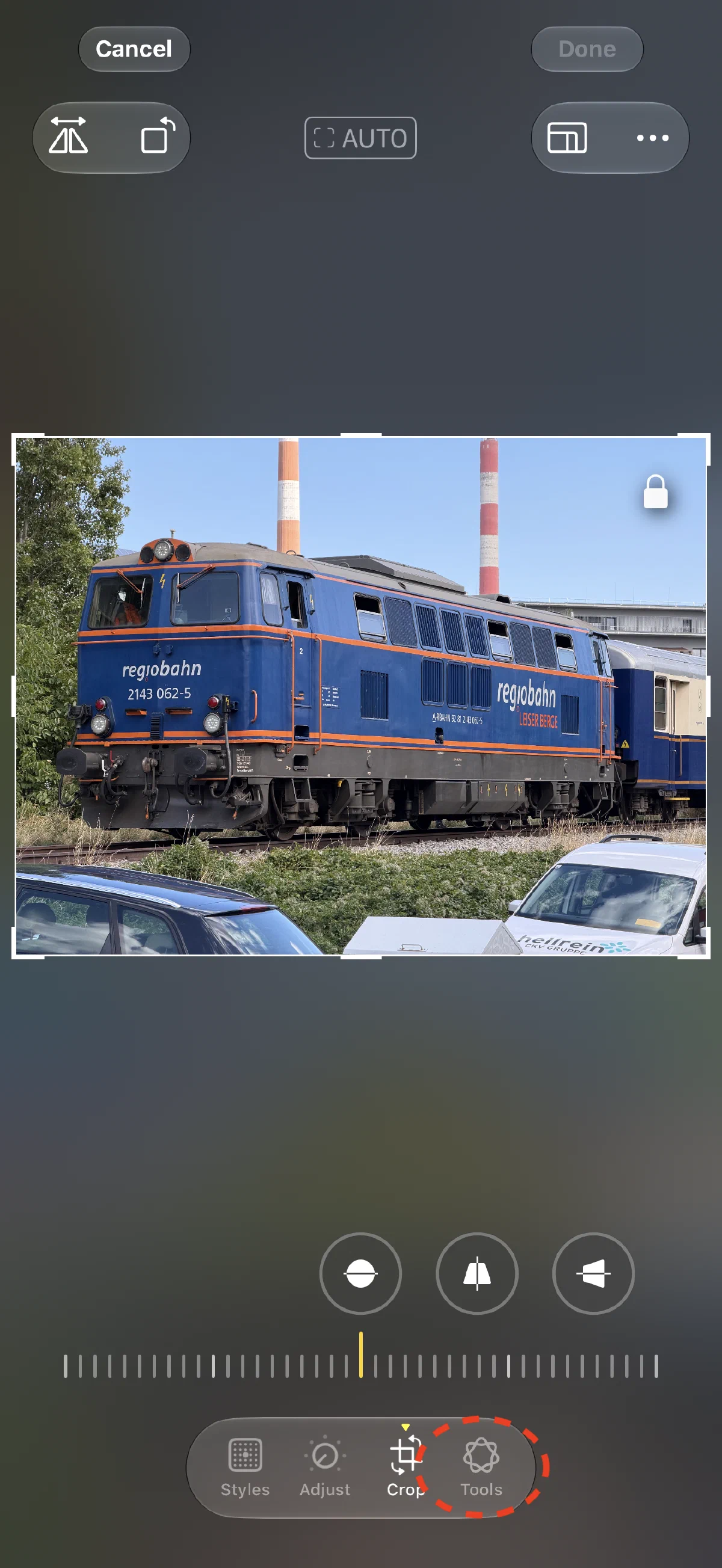
The three AI editing tools are available in the Photos app on iOS 27 and later. You need an iPhone 15 Pro, iPhone 16 or later or an Apple Silicon iPad to use them. To use them, open the Photos App, select the photo you want to edit, and tap the Edit button in the upper right corner:

- Step 1 of 3
Open Photos & Enter Edit Mode
Go to your photo library, select the picture you want to adjust to view it large, and tap Edit in the edit toolbar to open the editing workspace.
- Step 2 of 3
Tap Tools with the Apple Intelligence Icon
Select the Apple Intelligence Icon.
- Step 3 of 3
Choose your Editing Tool
Choose one of the three editing tools: Clean Up, Reframe, or Generative Expand.
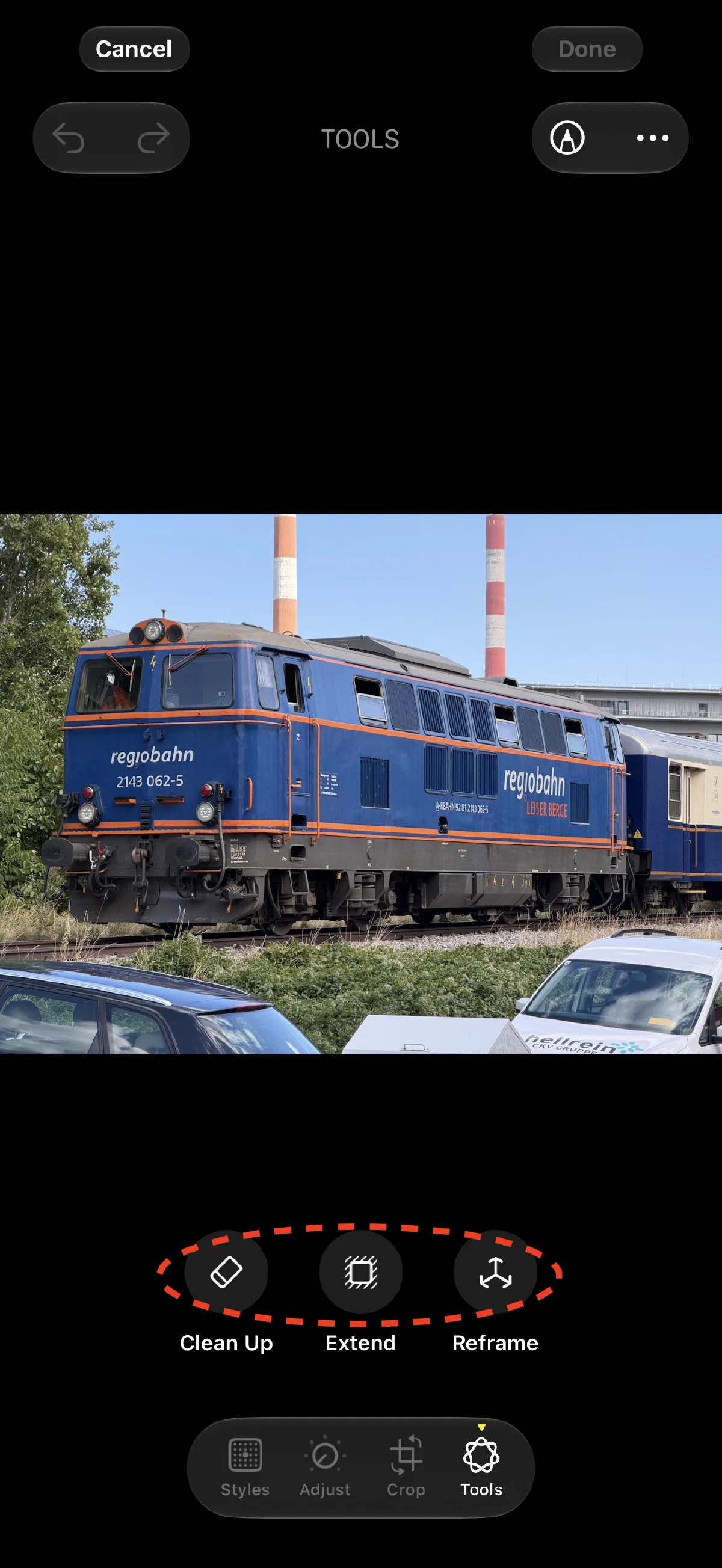
The Three AI Editing Tools in Apple Photos
I tested all three Apple Intelligence editing functions on the same photo to keep things comparable. For this post, I even shot a dedicated test image on my iPhone 17 Pro Max.
Remove Distractions with a Revamped Clean Up Tool
The original clean up tool was a “first version”. It worked with simple photos but ruined more complex ones when you tried to remove objects from them. It was no competition compared to Touch Retouch App. But that changed with the revamped Clean Up tool in iOS 27. I’ve tried removing big and small objects and the results were consistently good.
Have a look at this example photo, where I wanted to remove the cars from the foreground.

 Original
The revamped Clean Up tool does a much better job than its predecessor. At the top of the tool, you can switch between two quality modes:
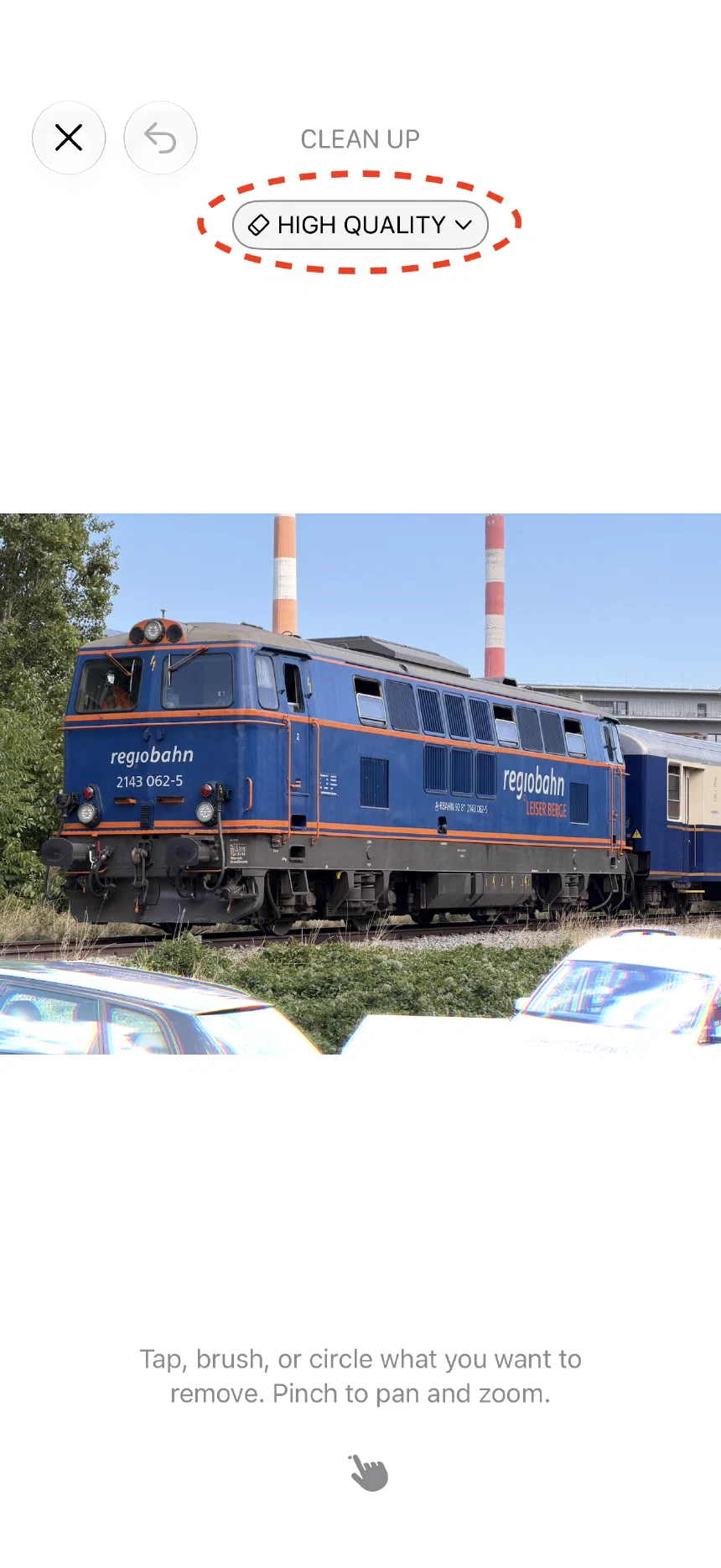
The “fast” option is the default and works well for simple objects, while the “best” option does a better job for complex scenes.
Reframe with AI
Reframe lets you shift the perspective of a photo slightly. It’s an interesting feature, but the results fell a bit short of my expectations. Here’s what went wrong in my test:
It placed the two chimneys from the background to the middle of the scene right in front of the residential buildings. That’s clearly wrong. They belong to the background. They’re from a power plant about a mile away. I had a similar experience using the Reframe tool if the background is more complex. In such cases, it gets quite “creative”.
Second, have a look at the roof to the left right next to the trees. Originally, these were just 3 small solar panels. Not an entire roof or a huge solar panel system.

 Original
That said, Reframe works well with simple backgrounds like a beach or clear sky. In those cases it produces convincing results. I’ve already used it to fix minor composition issues in some photos, by nudging the viewpoint upward to push unwanted foreground objects out of frame.
Generative Expand
I’ve been using similar tools for over a decade like “ReCrop” by AdvaSoft back in 2013.
In my workflow, I’ve used Generative Expand prior to a perspective correction to add extra canvas space to straighten lines without cropping into the frame. I also reach for it when I didn’t quite nail the subject placement and need room to reframe for e.g. a rule-of-thirds or centered composition.

 Original
Generative Expand may also get a bit creative. But you won’t notice it unless you know the place. See the small building in the background on the right side of the expanded photo? It does not exist in the real world.
What You Should Know Before Using These Tools
First, if you plan to use at least two of the tools together, always start with the “Clean Up” tool. If you don’t, the Photos app will remove other AI adjustments if you try to use it.
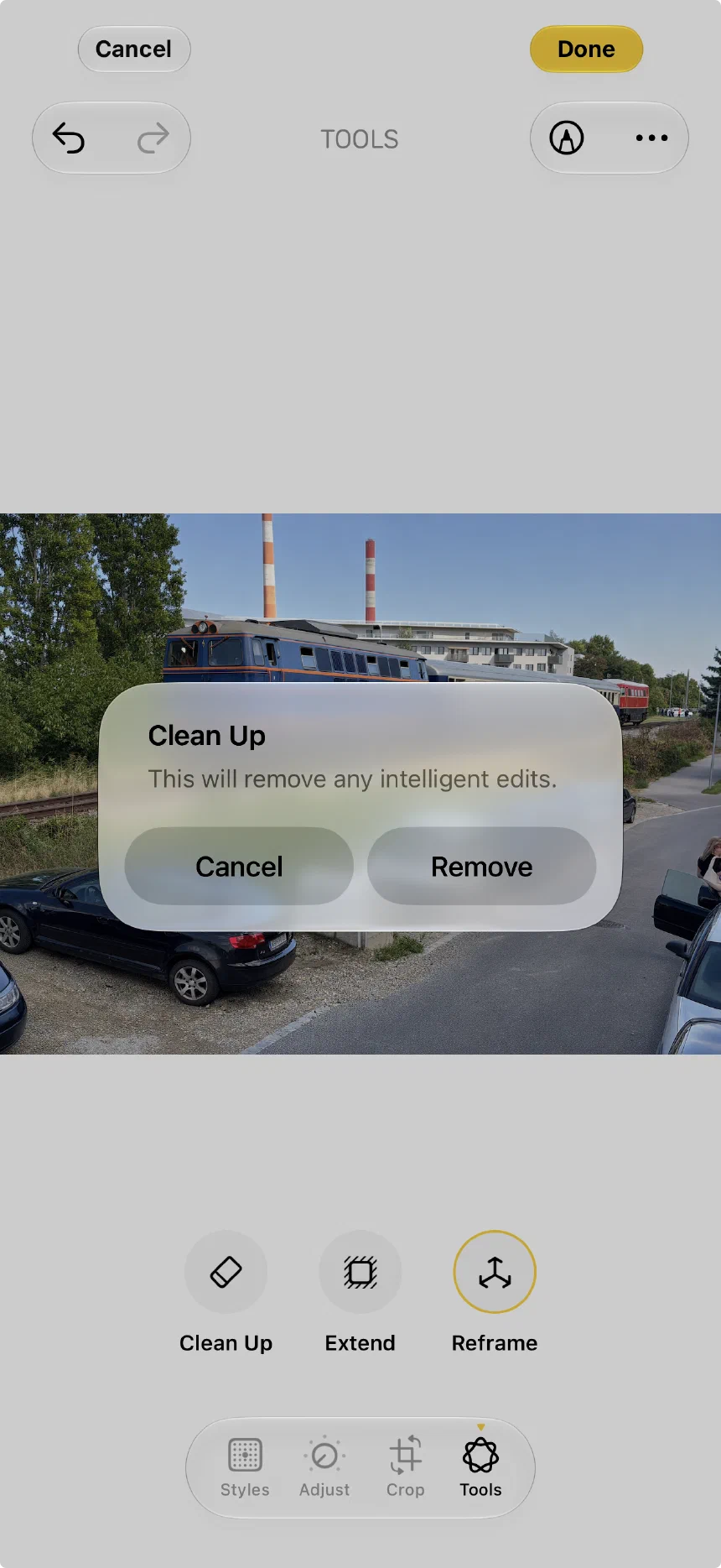
Second, when you apply one of the Apple Intelligence tools, it may display a preview with lots of “wobbling lines”. That’s not the final result. It’s just a preview. I just saw it once but didn’t take a screenshot. If I ever see it again, I’ll update this post.
Lastly, using these tools may take a while to apply. It’s not a quick edit. And though I didn’t test it yet, I believe using it extensively may drain your battery. But that’s just an assumption.
The Verdict
Having Clean Up, Generative Expand, and Reframe right inside Apple Photos saves me from jumping between apps for simple edits. Here is the short version of when I’ll use what:
I’ll use “Clean Up” for removing people, cars, or trash cans directly in the Photos App. I’ll stick to the “best” quality setting for cleaner results. But I’ll still use TouchRetouch for thin lines, fences, power lines, or when I need a manual clone stamp or more fine-grained control over the edit.
I’ll turn to “Generative Expand” when I framed a shot too tightly and need extra room to straighten lines without cropping in.
Finally, “Reframe” will help me to fix perspective for simple backgrounds like open skies or water. But I’ll pass on complex background scenes.
Discussion
0 CommentsComments are moderated, links are deleted. So don't even bother spamming.
Just one more step
Please enter your name and email address. Your email will never be published.